

Disklavier Usage Guide
This page provides instructions for using the Yamaha DU1 Disklavier units in SoundLab (SLL and SLR).
The Yamaha DU1 Disklavier is a U1 vertical piano from Yamaha with a Disklavier mechanism. It can be played like a normal acoustic piano, and also features a built-in recording and playback system that captures performance details. [1]
Hardware Overview
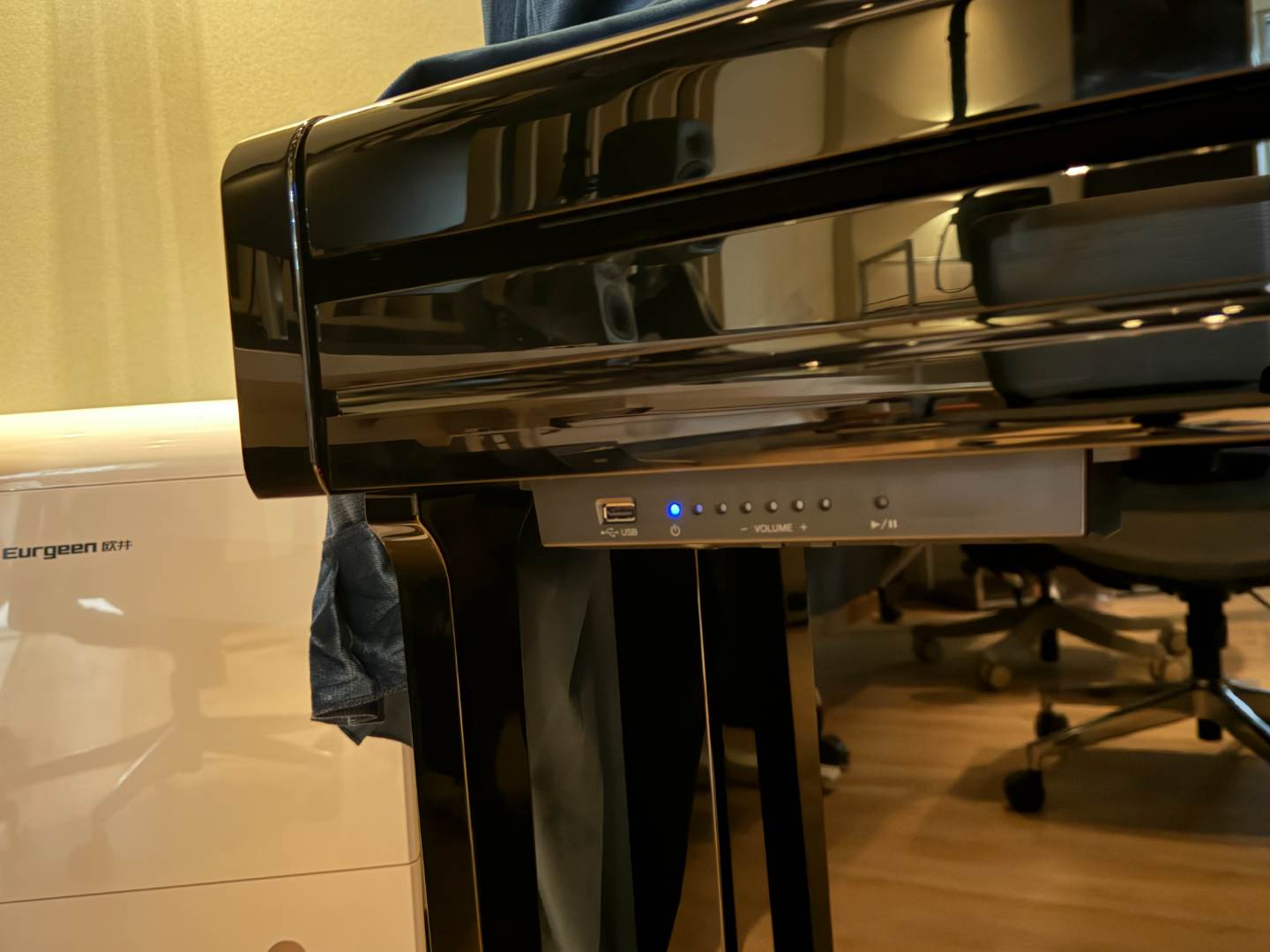
Power & Status (Left side under keyboard)
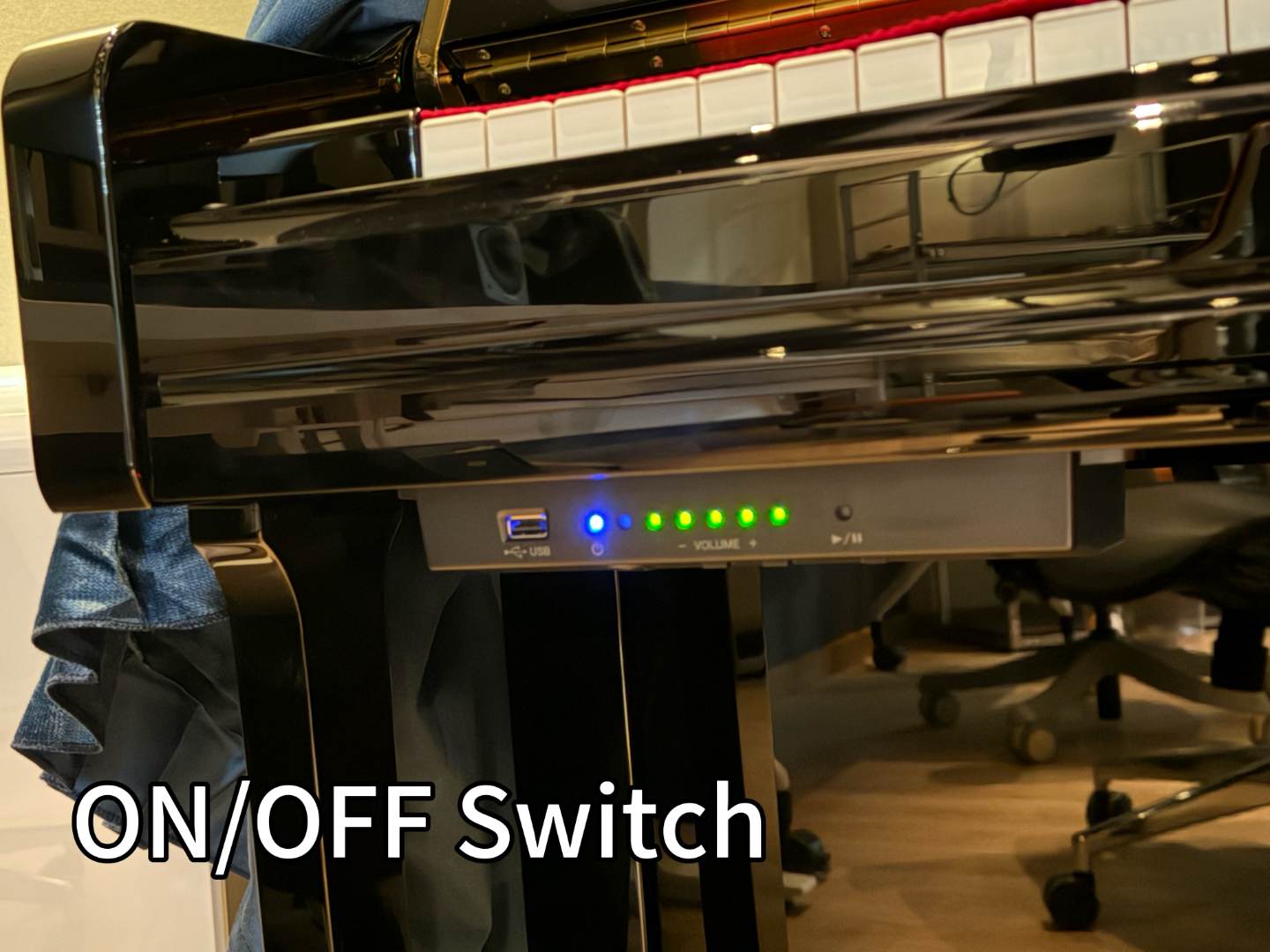
The power switch is located on the left side under the keyboard. After turning the unit ON, wait for all green lights before touching any keys.
IMPORTANT
Wait for all green lights before touching any keys.
Network Connection
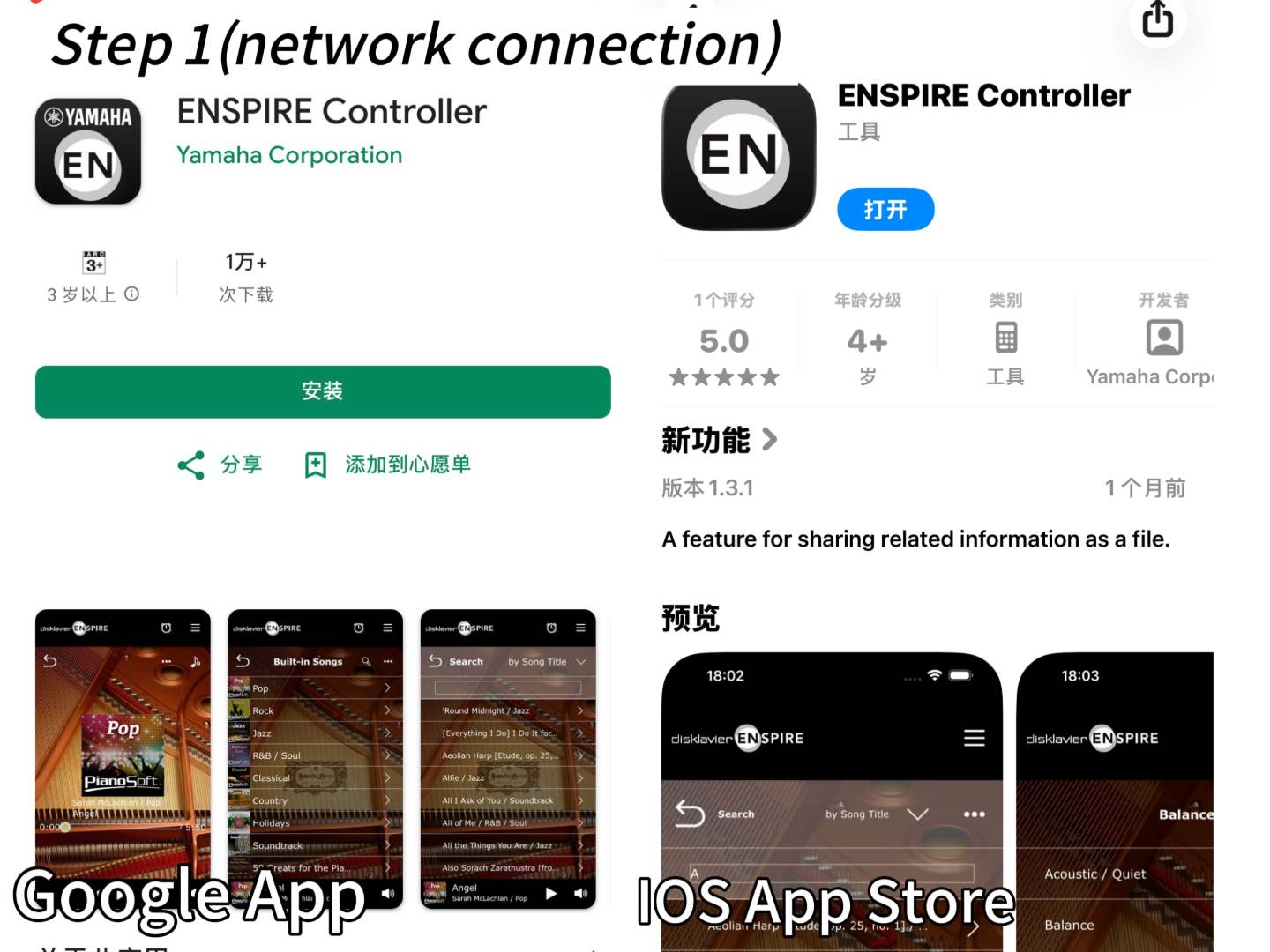
The Disklavier units are connected via Ethernet cables to the SoundLab network. This allows to connect both Disklaviers directly, or to play back some pre-recorded tracks and change some settings, using the ENSPIRE controller mobile app [2] (iOS: search "ENSPIRE Controller" on the App Store). In order to connect to the Disklavier units:
- Connect your mobile device to the
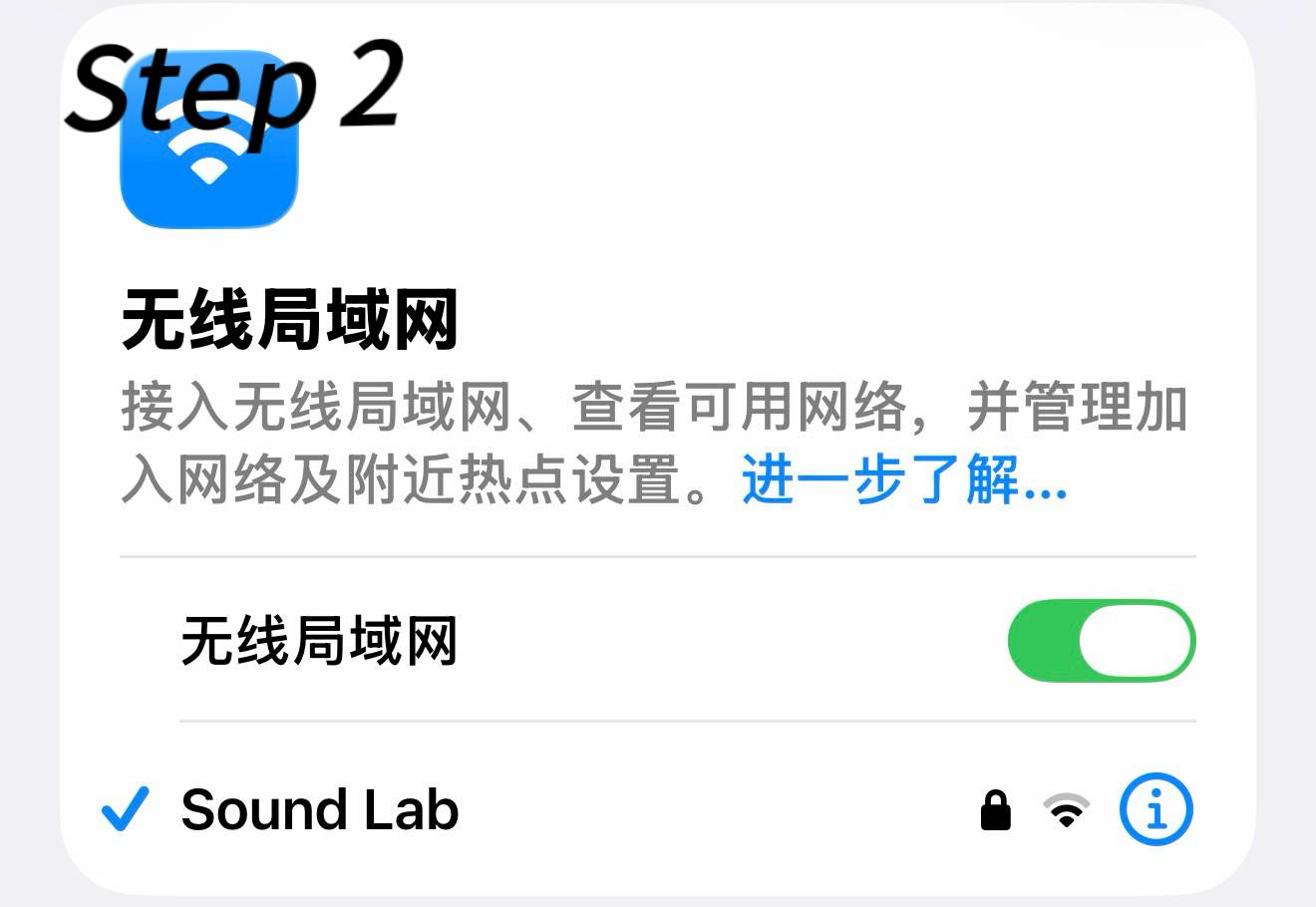
Sound LabWiFi network. If you need the password, please ask the lab technicians or professors. - Open the
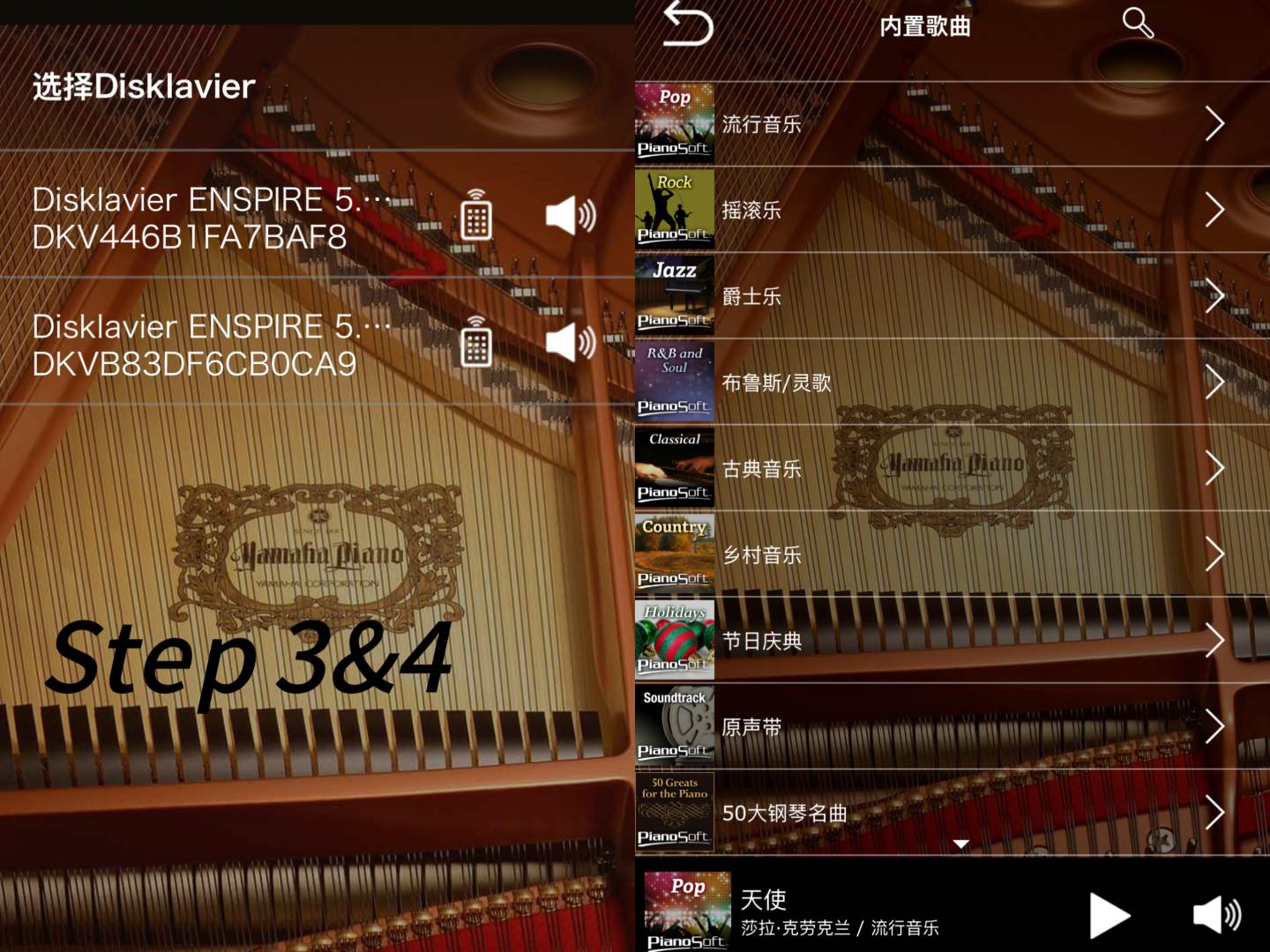
ENSPIRE Controllerapp. - Both Disklaviers should appear in the device list (see image below). Select the one you want to control (SLL: ending 0CA9; SLR: ending BAF8).
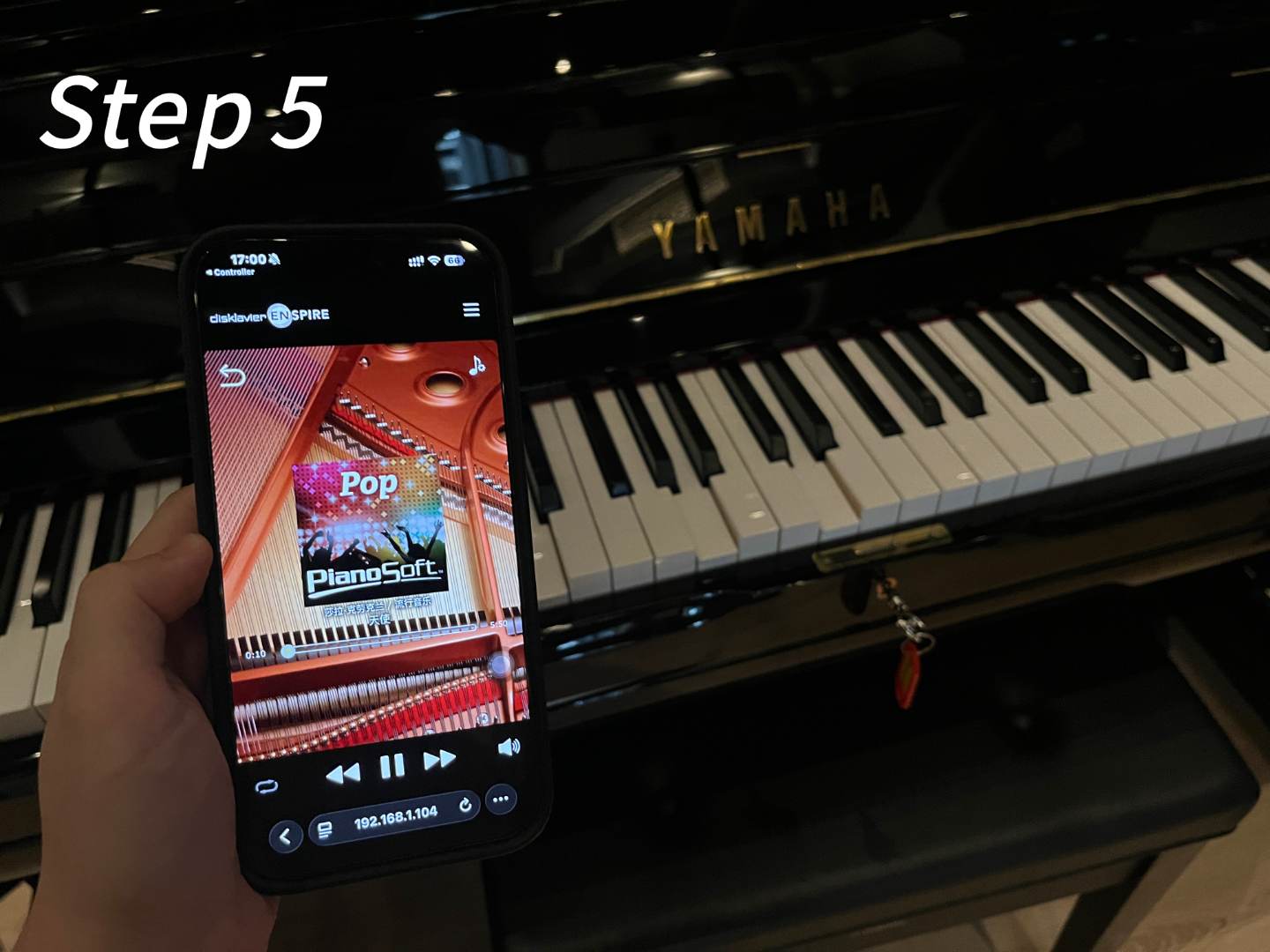
MIDI Setup (USB)
To record or playback MIDI on the Disklavier:
- Connect a USB-B cable from the Disklavier's back panel to your computer.
- You may need to install the USB-MIDI driver [3]
- In your DAW or Max, select the
Disklavieras a MIDI input device for recording OR as a MIDI output device for playback.
AVOID FEEDBACK LOOP
When routing MIDI in your DAW/Max, make sure the Disklavier input is not routed back to the Disklavier output. This can cause an infinite triggering loop and seriously damage the mechanical system of the Disklavier.
Accessories
The Disklavier comes with the following accessories:
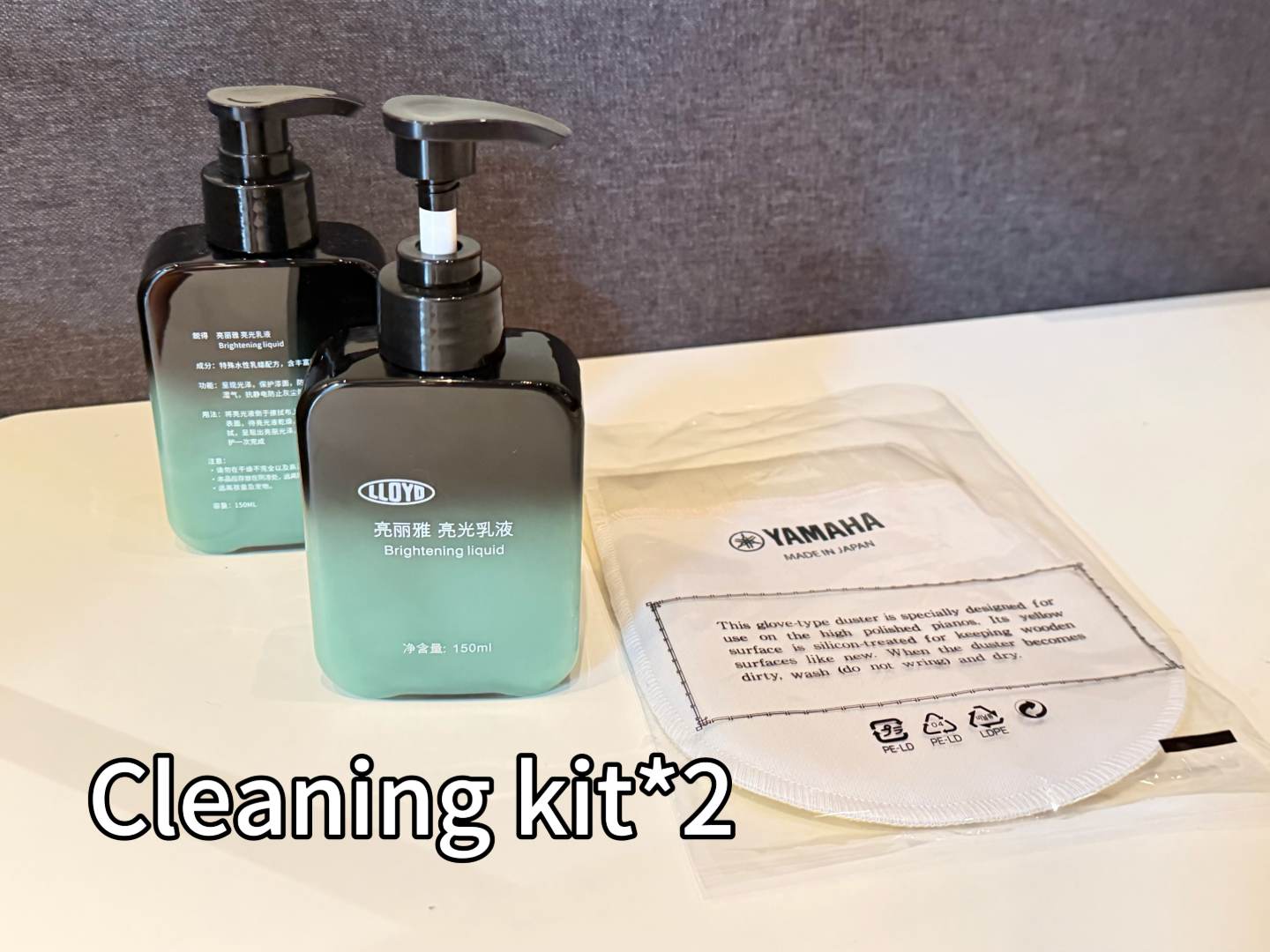
- Cleaning kit (×2)
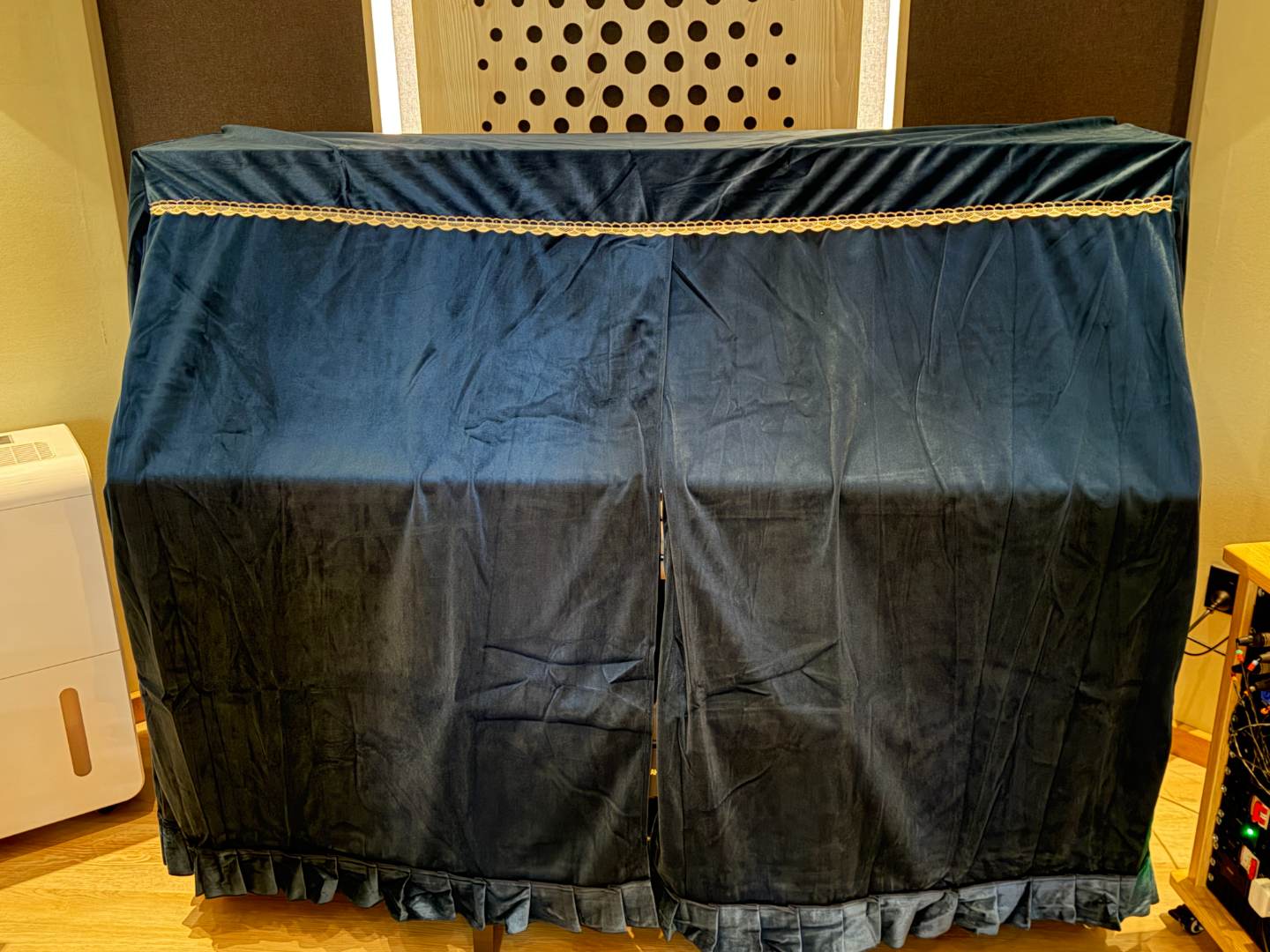
- Piano cover (×2)
The cleaning kit is for the piano's black body, not for the keys. Only one drop of the cleaning liquid is needed each time.
Always close the fall board when not in use to protect the keys. Avoid playing with wet or dirty hands.
After Playing
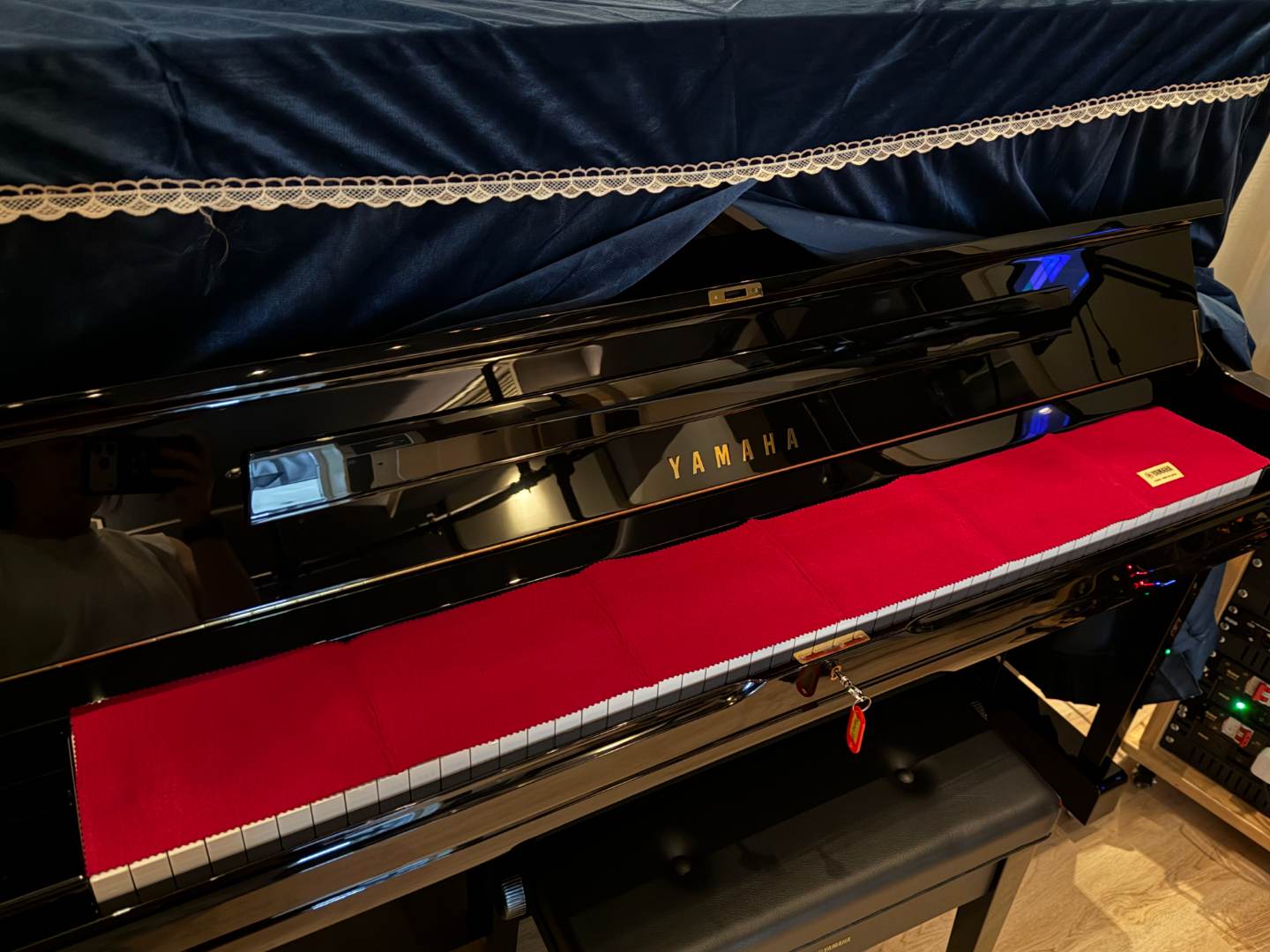
When you finish using the Disklavier, please restore everything to its original state:
- Turn off the power switch (located on the left side under the keyboard) until only one blue light remains on, then release.
- Close the fall board (keyboard cover) gently.
- Place the piano cover over the instrument if available.
- Make sure the cleaning kit is stored in its designated place.
Remember:
Always turn off the power and close the fall board before leaving the lab.
Additional Notes
- If the fall board cannot be opened, the Disklavier may be locked. Please contact lab technicians or professors for assistance.
- The internal MIDI ports (5-pin DIN) are currently not functional and are under investigation by Yamaha.
Important
Opening the knee board or internal panels should only be done by lab technicians or professors.